How to Set Up Event Ticketing on Squarespace (Step-by-Step)
At SEOSpace, we spend most of our days helping Squarespace site owners get found on Google and convert more of the traffic they're already getting. And one question keeps showing up in our inbox, from yoga studios, music venues, conference organizers, nonprofits, and workshop hosts:
"How do I actually sell tickets on my Squarespace site?"
Fair question. Because if you've tried, you already know the answer Squarespace gives you: there isn't one. Not really. Squarespace was built for websites and online stores, not ticketed events. There's no built-in way to issue QR-code tickets, collect attendee names, cap quantities by tier, or check guests in at the door.
That leaves most Squarespace users with two bad options:
Send buyers over to Eventbrite (lose your branding, pay almost $4 in fees on a $30 ticket, and break your checkout flow), or
Sell tickets as "products" through Squarespace Commerce and email PDFs manually like it's 2009.
We've tested a lot of workarounds with our clients, and there's one that actually solves this cleanly: a Squarespace-native ticketing tool called Eventually Ticketing. It embeds directly into your site, keeps the entire checkout on your domain (which is better for both branding and SEO signals), and gives you real tickets with QR codes plus a check-in app.
This guide walks you through the full setup with screenshots for every step. We'll also cover the native Squarespace workaround first, so you can see exactly where it breaks and why upgrading is worth it.
What you'll get out of this guide
Why Squarespace alone can't handle real ticketing
How the native Squarespace workaround works (and where it breaks)
A 10-minute setup for Eventually Ticketing on your Squarespace site
How to embed a "Buy Tickets" widget on any page
How to check guests in on event day
A fee comparison so you know what you'll actually pay
Table of Contents
Why Squarespace doesn't handle ticketing on its own
Squarespace is great at making your site look good. It's not great at running events. Here's what it can't do out of the box:
No real tickets. You can sell a product called "Ticket," but the buyer gets an order confirmation, not a scannable ticket. No QR code, no barcode, nothing to scan at the door.
No attendee data. If one person buys 5 tickets, you only get that one buyer's name and email. You have no idea who the other 4 guests are.
No tier control. You can fake "VIP" and "GA" using product variants, but stock counts get messy fast and there's no way to cap each tier independently with sale windows.
No check-in. Event day means you're scrolling through Squarespace orders on your phone, ticking names off a list.
No waitlists, no ticket transfers, no door sales, no comps.
That's why so many Squarespace users send buyers off to Eventbrite. It works, but you lose the branded checkout, the buyer leaves your site, and the fees stack up fast.
Squarespace lets you schedule events. It doesn't actually let you sell tickets to them.
Option 1: The native Squarespace workaround
If you've got a small event and you'll recognize everyone at the door, you can hack something together using Squarespace's built-in tools. Here's how, and where it stops working.
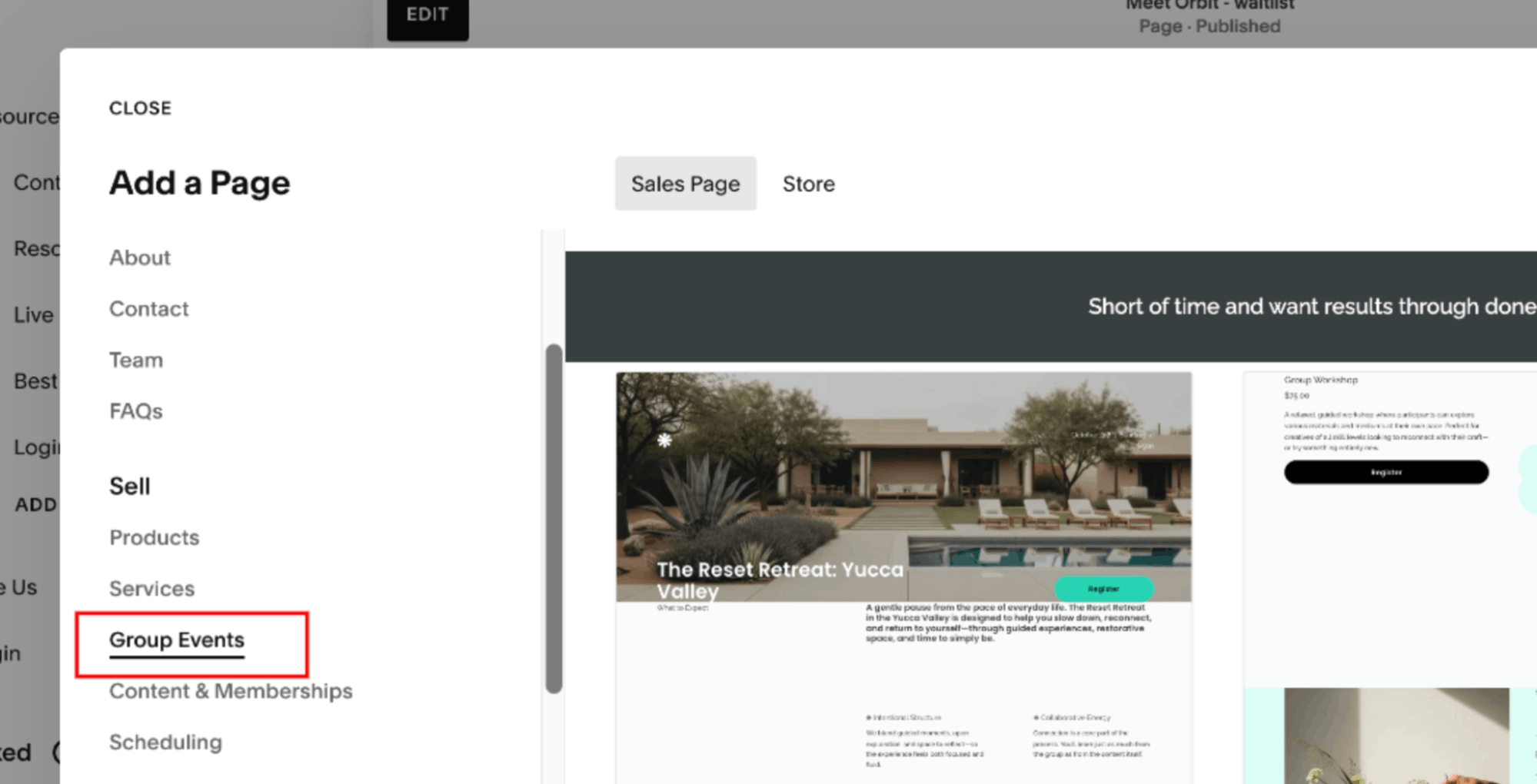
Step 1: Add an Events page
In your Squarespace dashboard, go to Pages → + → Events. Give it a name like "Workshops" or "Shows."
Step 2: Create the event
Click into your new Events page, hit + Add Event, and fill in the title, date, time, location, and description.
While you're filling in the description, make sure you're writing it with search in mind. We cover this in our Squarespace SEO checklist (event pages are some of the easiest to rank because most organizers don't bother).
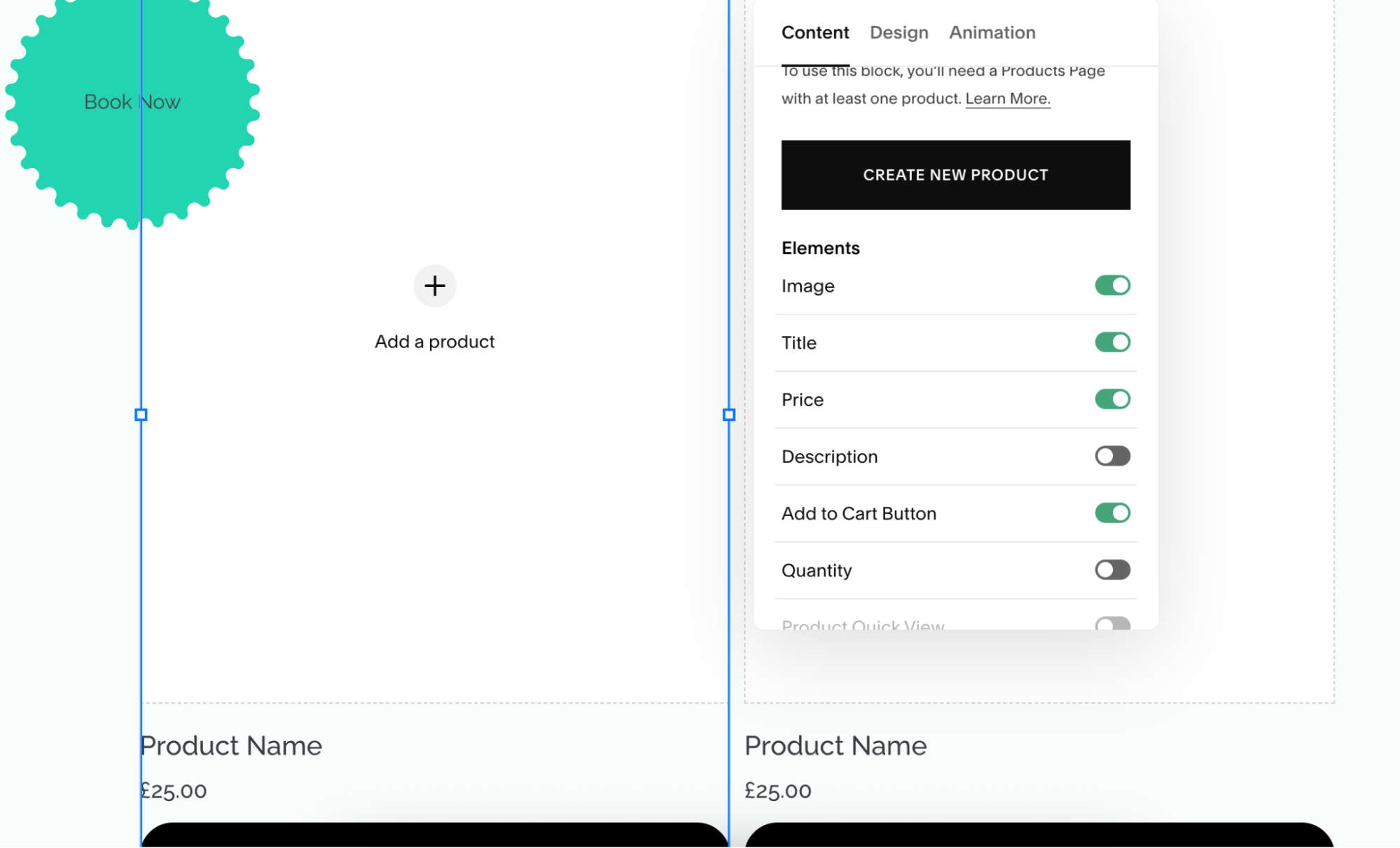
Step 3: Make a "ticket" product
Go to Commerce → Inventory → + Add Product. Pick "Service" (no shipping). Name it "[Event Name] Ticket." Set the price. Set stock to your venue capacity.
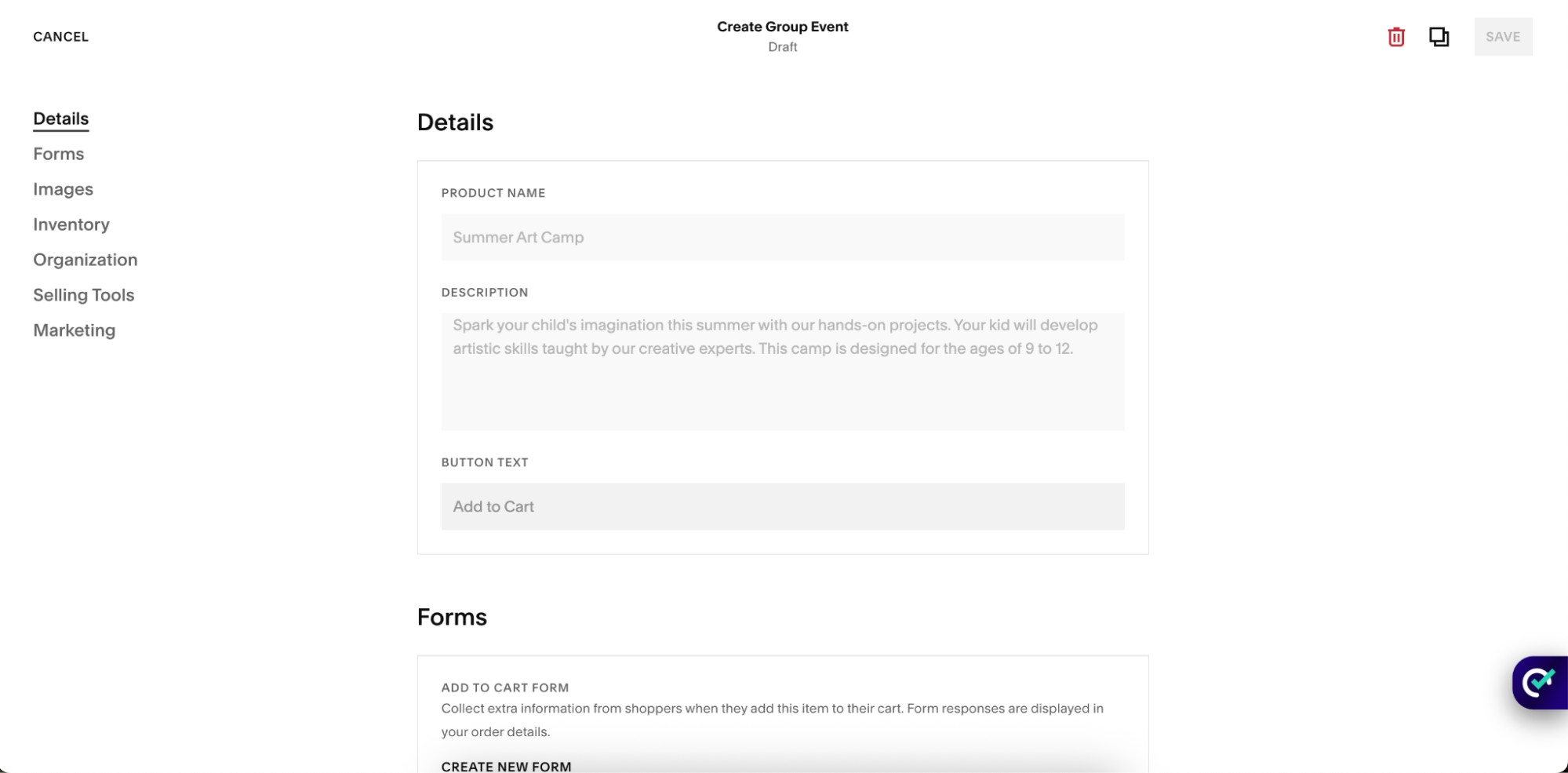
Step 4: Link the product to your event
On the event page, add a button block that says "Buy Tickets" and link it to your ticket product.
Where this falls apart
Run a test purchase and you'll see the problem right away. No QR code shows up in the confirmation email. The buyer gets a receipt, not a ticket. If they bought 5 tickets, you know one name. Five guests show up on event day and you're squinting at order numbers on a phone.
Good enough for a backyard fundraiser. Not good enough for a paid workshop, a concert, a conference, or anything with capacity rules.
That's where Eventually comes in.
Option 2: Set up event ticketing on Squarespace with Eventually
Eventually Ticketing is built specifically for Squarespace. It's not a redirect. It's not a clunky product hack. It embeds directly into your site, keeps the entire checkout on your domain, and gives you real tickets with QR codes and a check-in app.
Here's the full setup.
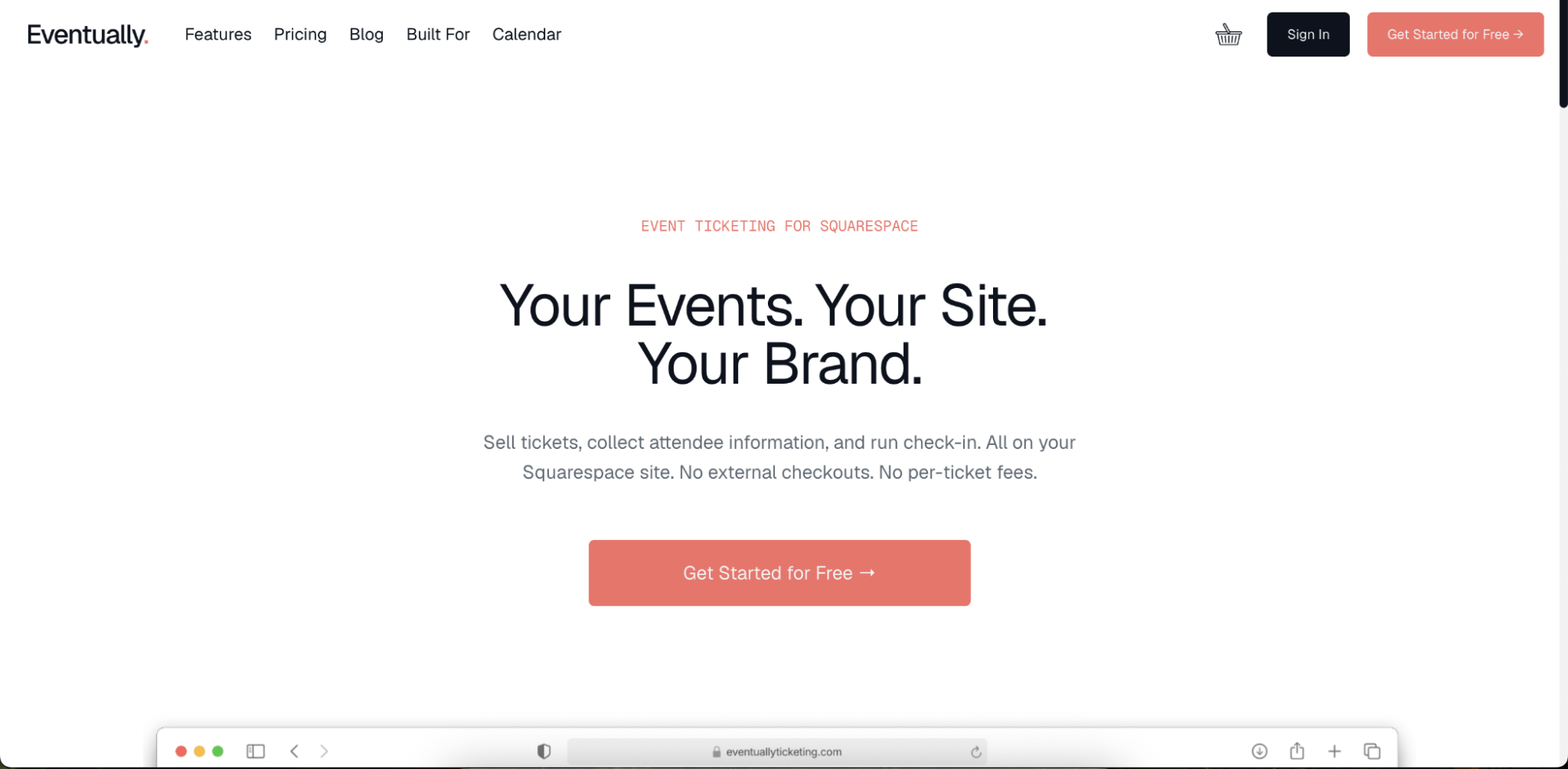
Step 1: Create your Eventually account
Go to eventuallyticketing.com and sign up. There's no monthly fee. Eventually charges per ticket sold, and free events cost nothing to host.
Step 2: Create your event
Once you're inside the dashboard, click + New Event. Fill in:
Event name
Date and time (with optional door open and close times)
Venue (physical or online)
Description and cover image
Organizer info
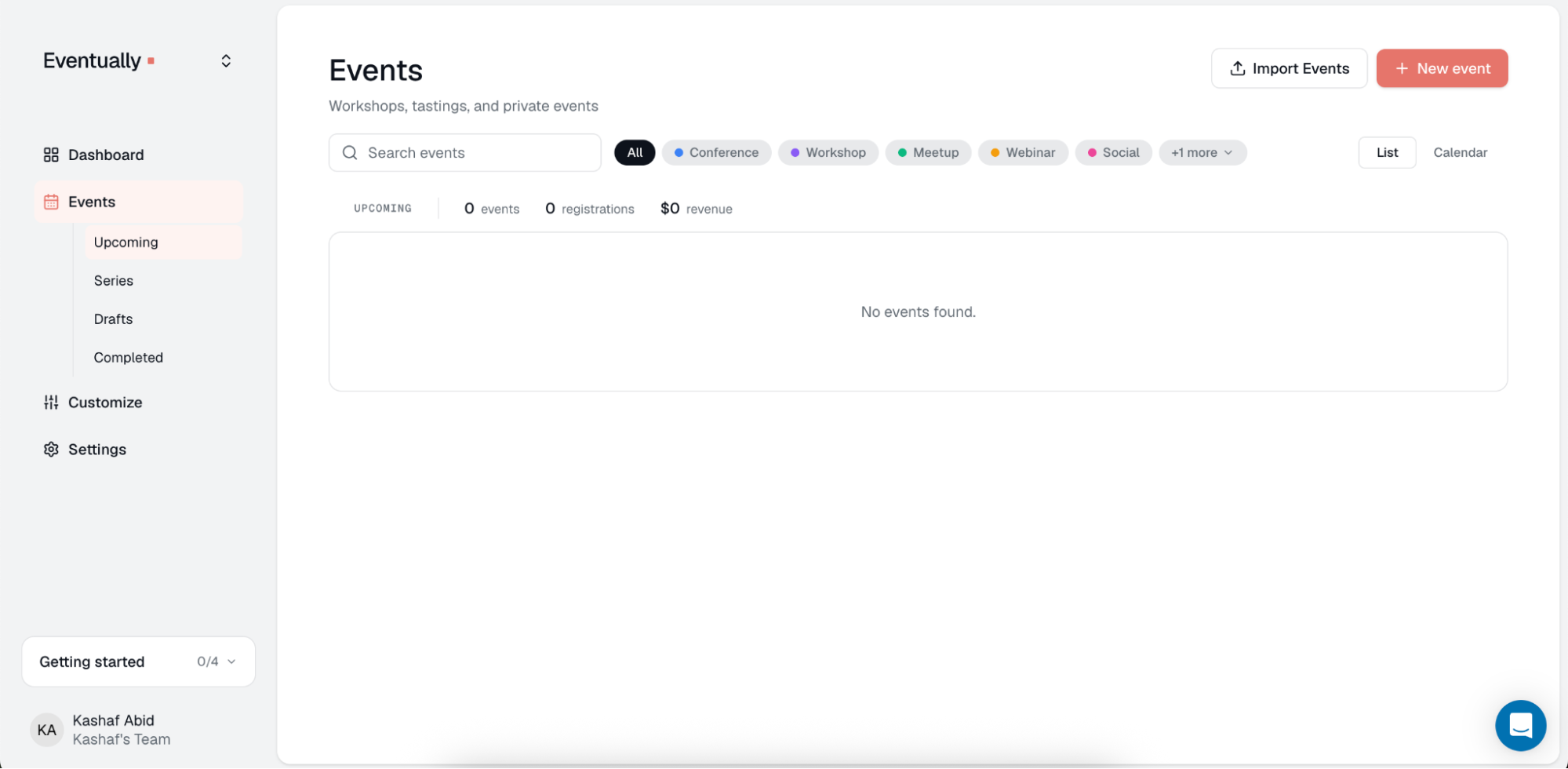
Create your event
Step 3: Build your ticket tiers
This is where Eventually pulls ahead of every workaround. Click Add Ticket Type and add as many tiers as you need:
Early Bird at $25, capped at 50 seats, available for 14 days
General Admission at $35, capped at 200
VIP at $75, capped at 25, includes meet-and-greet
Free RSVP at $0, capped at 30 (for comps and guest list)
Each tier has its own price, capacity, sale window, and visibility. You can hide a tier behind a promo code if you want a private VIP pre-sale.
Step 4: Decide what info to collect from each guest
Eventually grabs name and email per ticket, not per order. That's the part Squarespace native can't do.
You can also add custom questions:
Dietary restrictions
T-shirt size
Company name
Accessibility needs
Step 5: Connect Stripe for payouts
Eventually pays out through Stripe, so connect your Stripe account (or create one in about 2 minutes if you don't have one). Money goes straight to your bank account. Eventually never holds your funds.
Step 6: Embed the checkout on your Squarespace site
Here's the part that makes the whole thing work. In Eventually, open your event and click Embed. Copy the snippet.
In Squarespace, go to the page where you want the "Buy Tickets" experience. This could be your event page, your homepage, or a dedicated landing page. Add a Code Block and paste the snippet in.
Save and preview. The full checkout now lives directly on your Squarespace page. No redirect. No Eventbrite branding. No broken flow.
Step 7: Run a test purchase
Always test before you go live. Buy a $0 or $1 ticket using your own email. You should get:
An order confirmation
A separate ticket email with a QR code for each attendee
An option to add the ticket to Apple Wallet or Google Wallet
Step 8: Check guests in on event day
Download the Eventually scanner app for iOS or Android, or use the web-based check-in tool on a tablet at the door. Log in, pick your event, and scan QR codes as guests arrive. The app shows you in real time:
How many tickets sold vs. how many checked in
Breakdown by tier
Anyone trying to use a duplicate or refunded ticket
Squarespace vs. Eventbrite vs. Eventually: what you'll actually pay
Here's how the fees stack up on a $30 ticket:
| Platform | Service Fee | Payment Fee | Total per Ticket | Buyer Stays on Your Site? |
|---|---|---|---|---|
| Squarespace Native | None (but no real tickets) | 2.9% + $0.30 | ~$1.17 | Yes |
| Eventbrite | 3.7% + $1.79 | 2.9% | ~$3.79 | No, redirect |
| Eventually | Lower flat per-ticket fee | 2.9% + $0.30 | ~$1.70 | Yes |
Eventually comes in well below Eventbrite, and unlike the Squarespace workaround, you get actual tickets your guests can use.
Check eventuallyticketing.com for current rates. There are usually discounts for nonprofits and free events.
The short version
Squarespace makes a beautiful website. It just wasn't built for ticketing. You have three options:
Sell tickets as products. Works for a tiny event, breaks down fast.
Send buyers to Eventbrite. Works, but high fees and your buyer leaves your site.
Use Eventually Ticketing. Real tickets, real attendee data, real check-in app, lower fees than Eventbrite, and your buyer never leaves your Squarespace site.
For most Squarespace owners running paid or capped events, option 3 is the obvious pick.
Start selling tickets on your Squarespace site with Eventually →
Frequently Asked Questions
-
Technically yes, by selling tickets as products. But you won't get QR codes, per-attendee names, or a check-in app. Fine for a tiny event. Not fine for anything paid or capacity-controlled.
-
Yes, as long as your plan supports Code Blocks. That's Personal and above. You don't need the Commerce plan.
-
The Eventually embed inherits your fonts and uses a color palette you set, so it looks like part of your site instead of a widget bolted on.
-
Yes. One click from the Eventually dashboard. Full or partial refunds both work.
-
Eventually handles recurring event series and multi-event passes. The Squarespace product hack and a basic Eventbrite setup both struggle with this.
-
Yes. You can add items like t-shirts, drink tokens, or parking passes as add-ons during checkout.